Using Vulnerability Management
Core concepts
In Vulnerability Management all ingested data is grouped under engagements. From each engagement imported/ingested events or issues can be remediated for the full suite of vulnerability management needs. There are various tab’s available that provide different sets of data or actions.
Engagements
Engagements are the definition used for separating data being ingested e.g. If you have a penetration testing team actively in the environment, when your engage their services it is seen as an engagement. They can then group all their findings under one engagement.
Engagements can be viewed by accessing the engagement icon on the left of the vulnerability management panel.
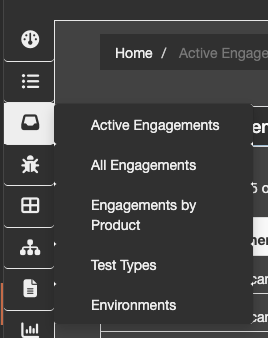
There are various options to choose from based on your specific needs. By default SIEMonster will create a daily engagement for Wazuh data import.
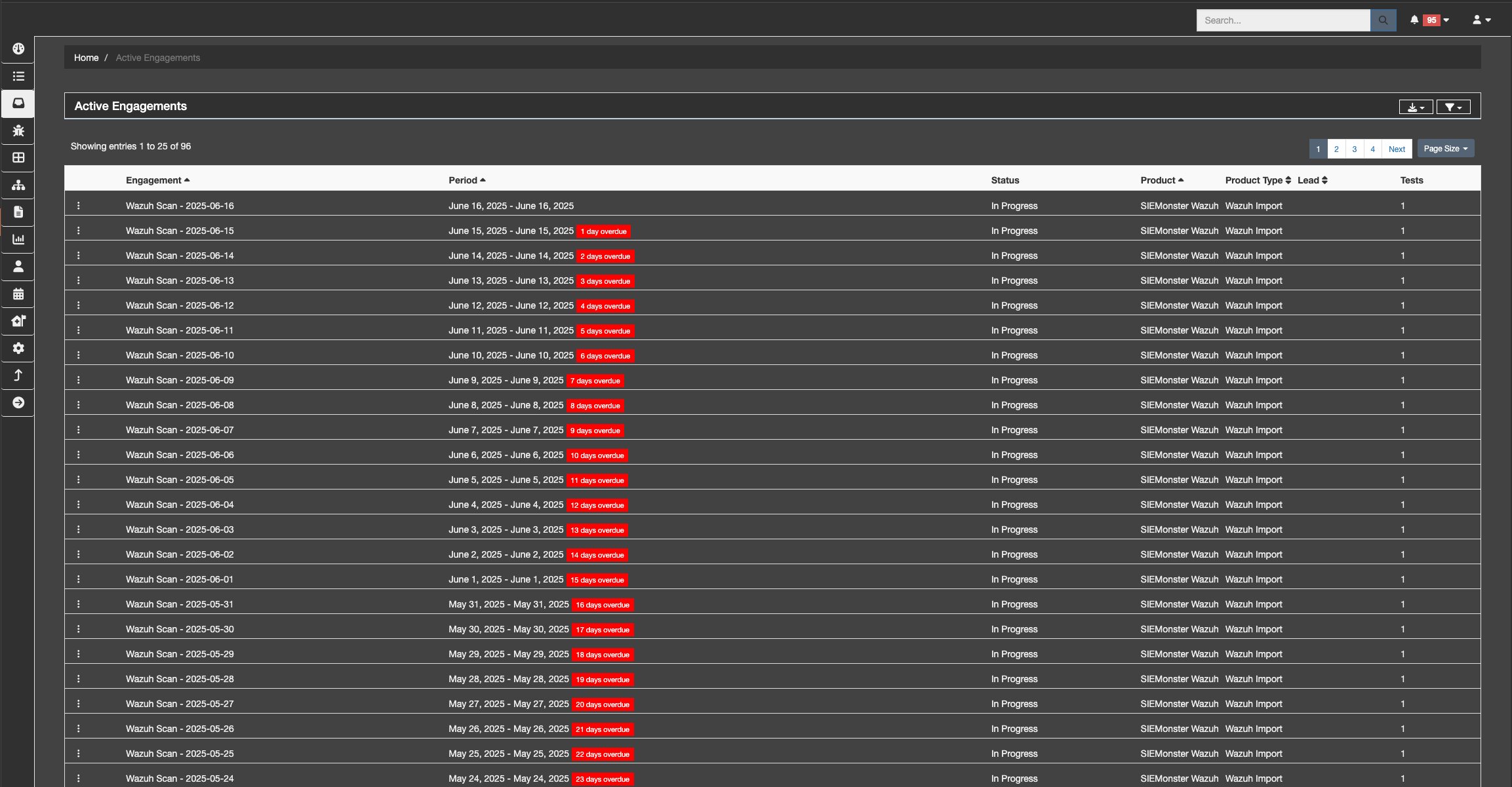
🔖 NOTE: Daily engagements are currently being reviewed and may be changed to a single static engagement that is left open for continuous improvement purposes.
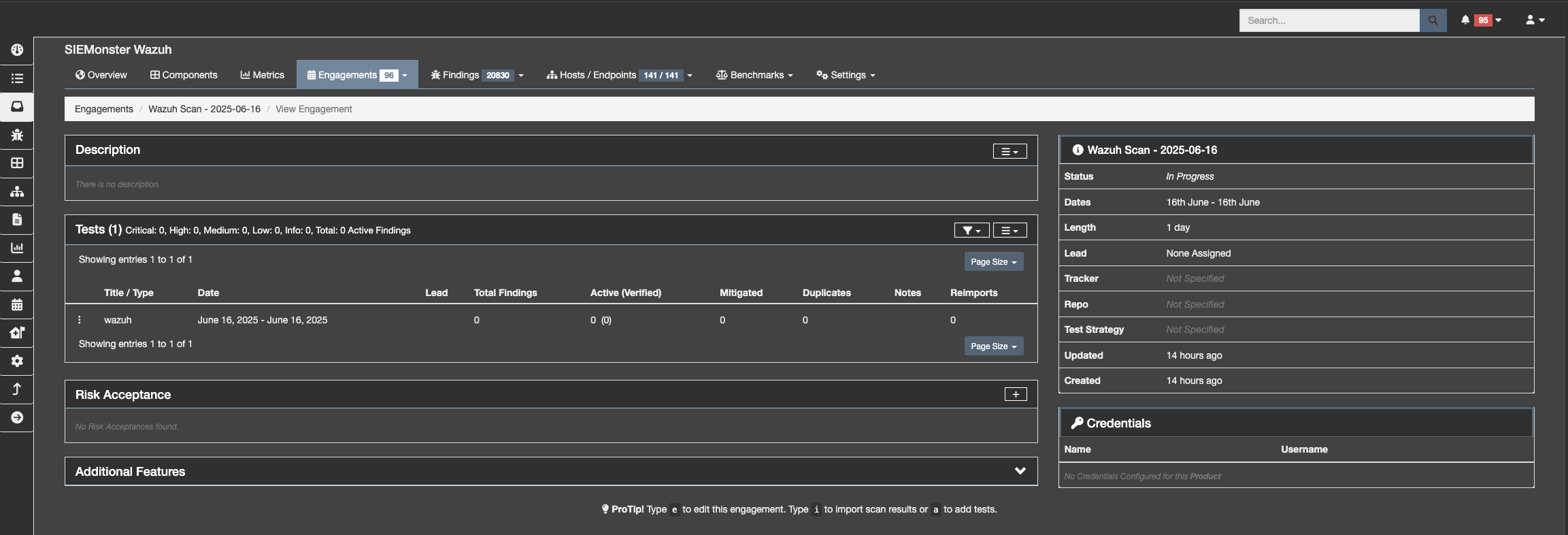
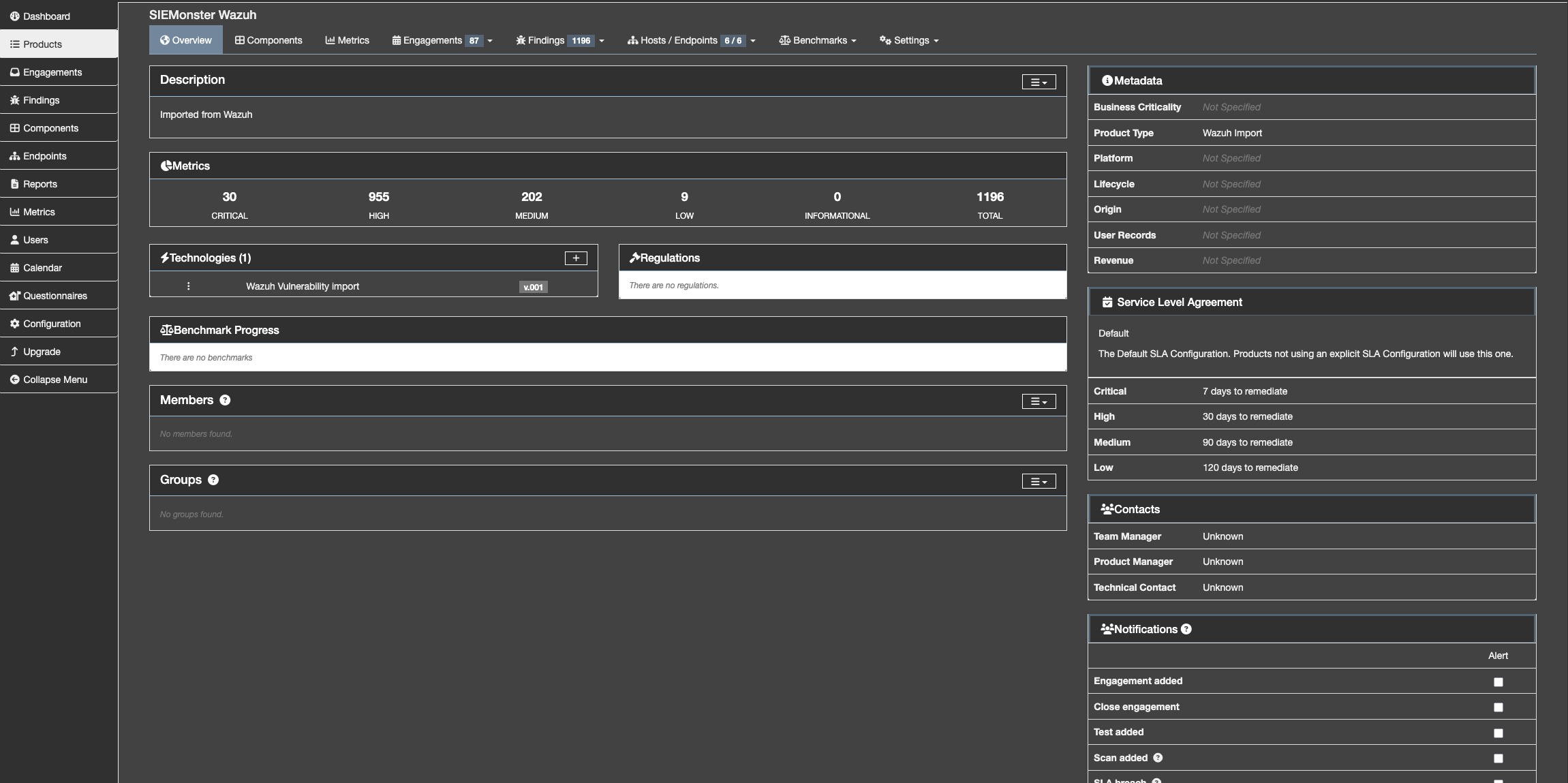
When you click on the engagement it will provide you with the relevant data associated with the engagement. The default screen when entering an engagement is shown below.
Overview
Once you enter into an engagement you can see the overview, this covers various aspects of the engagement such as the metrics relating to counts of vulnerabilities and their levels. Additional information that can be added relates to members and groups also.
Components
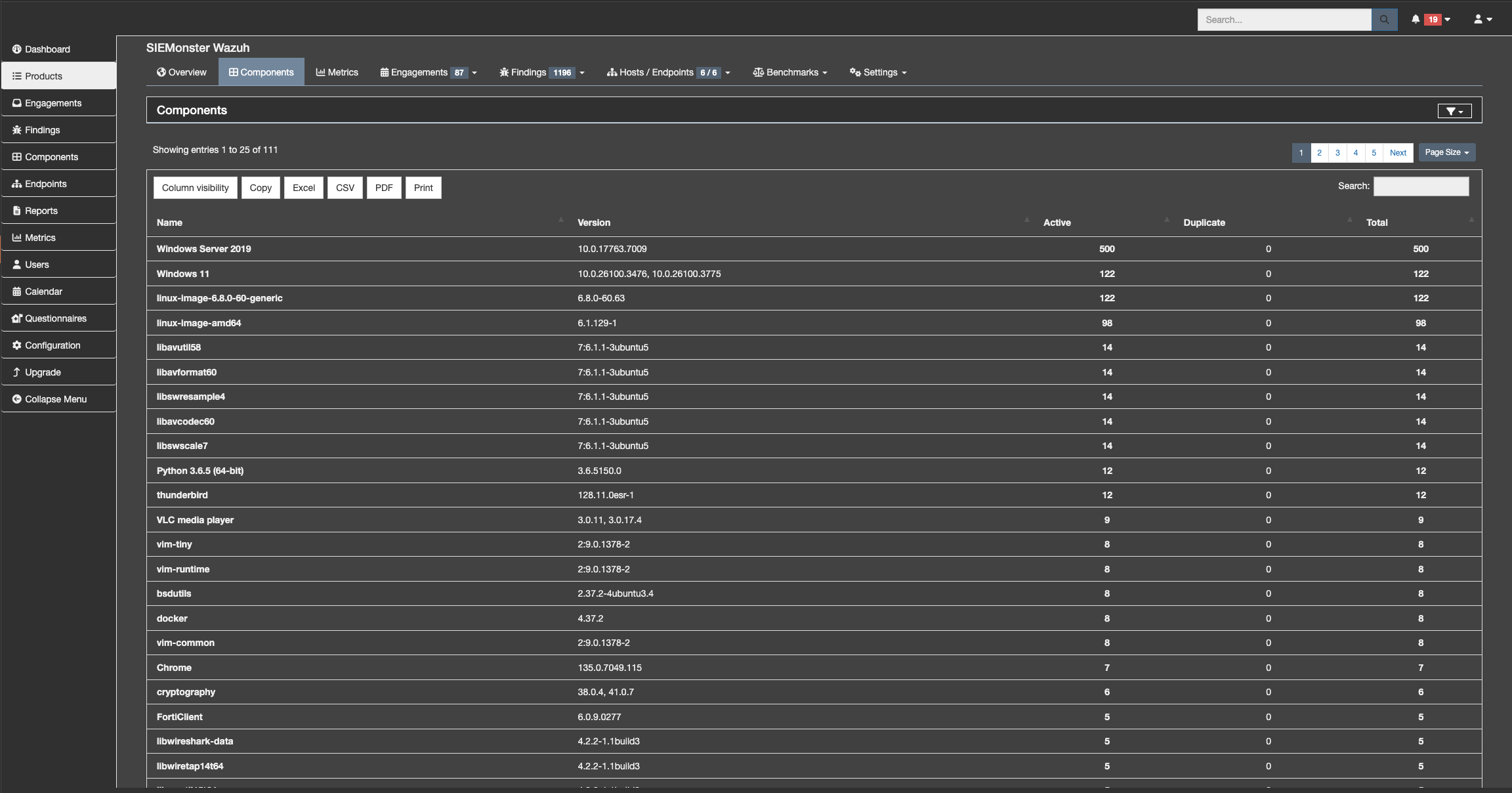
In the components tab it shows the items that are vulnerable. They can either be exported or individual vulnerabilities and/or findings selected.
Metrics
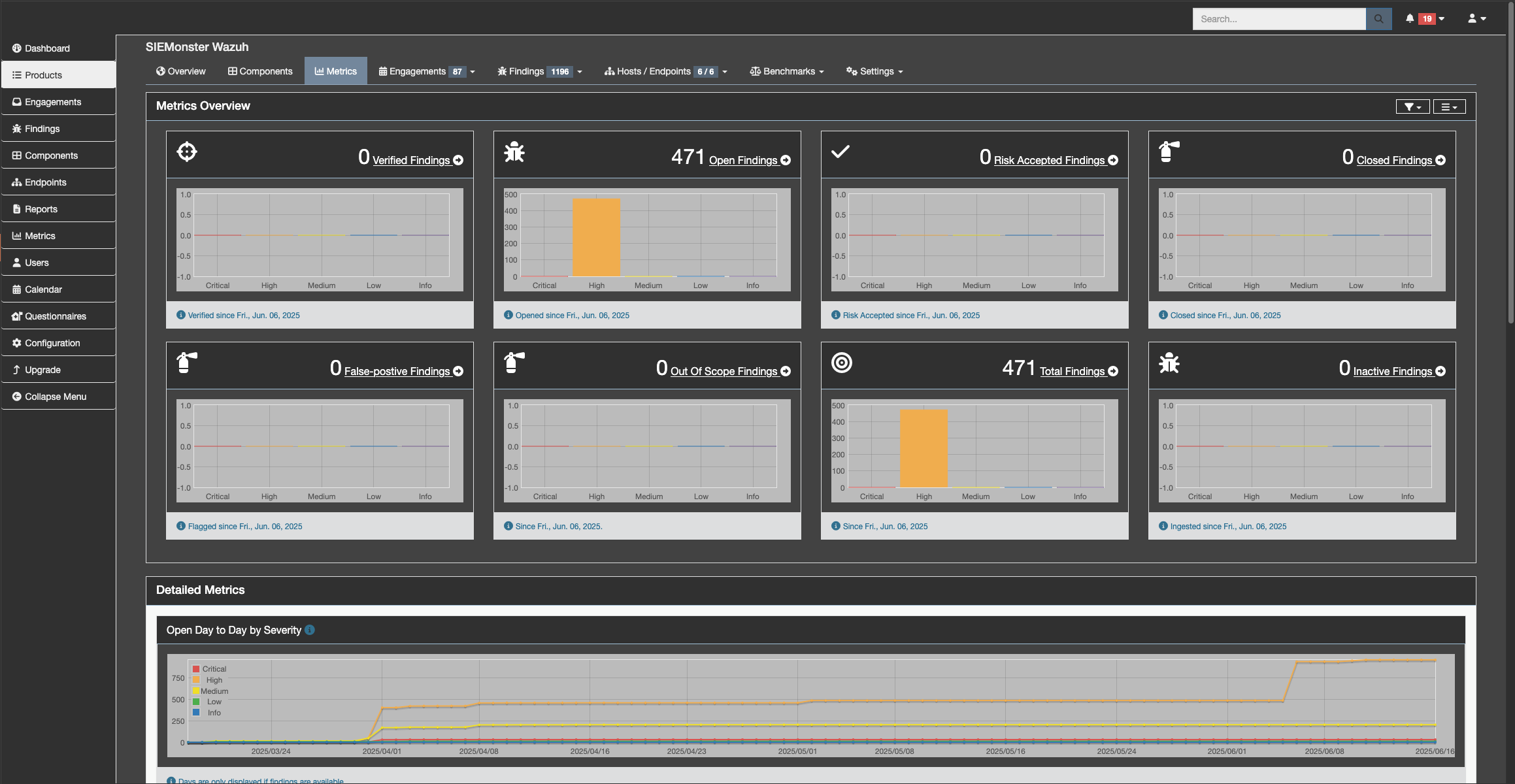
The metrics gives you a breakdown of the items for the engagements and is suitable for incorporating into reports when providing feedback to customers. It also clearly indicates the total vulnerabilities or findings over a time period allowing for evaluation of patching policies, it’s effects and results.
Findings
The Findings tab allows for individual findings or bulk findings to be addressed.
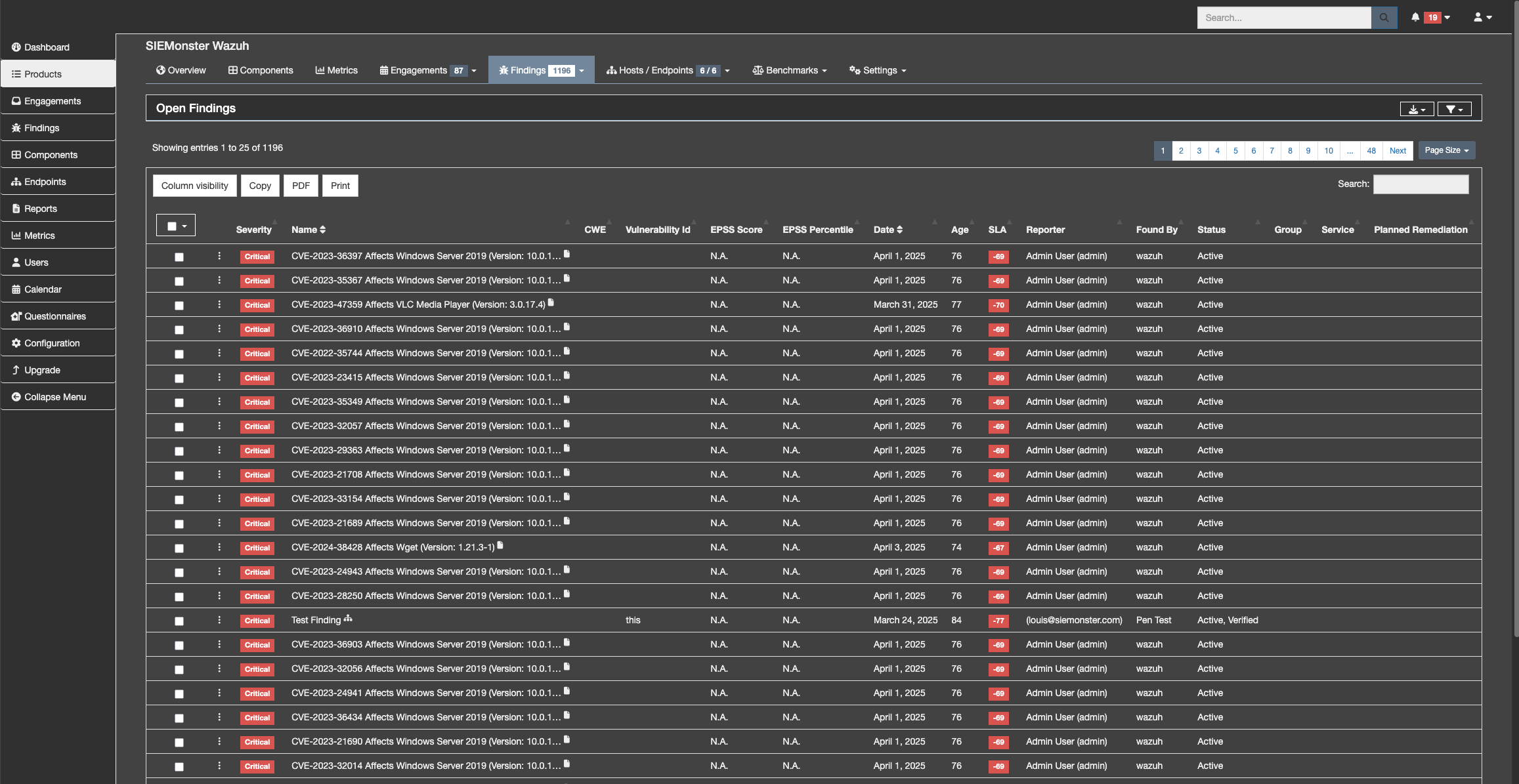
To perform bulk remediation select the findings by using the tick boxes, or using selection criteria to select the ones that you want to remediate or address
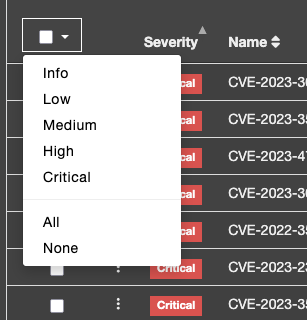
Once the bulk selection is don the bulk edit button allows for the all vulnerability relevant changes to be applied
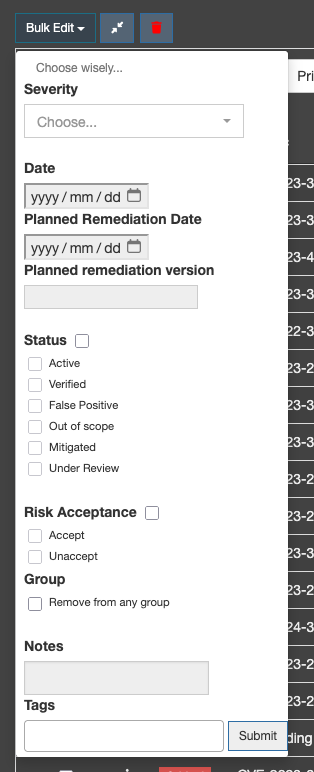
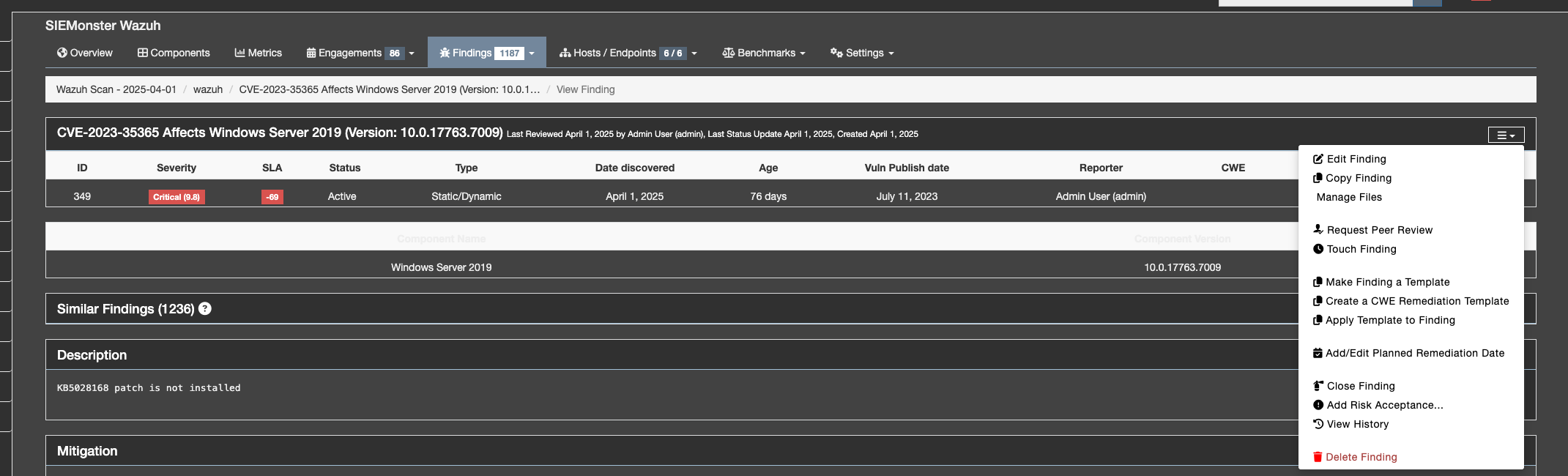
Ultimately it is better to process the findings individually to ensure that no operational risks are missed. To manually address a finding click on the relevant finding which will load the detail screen for the finding.
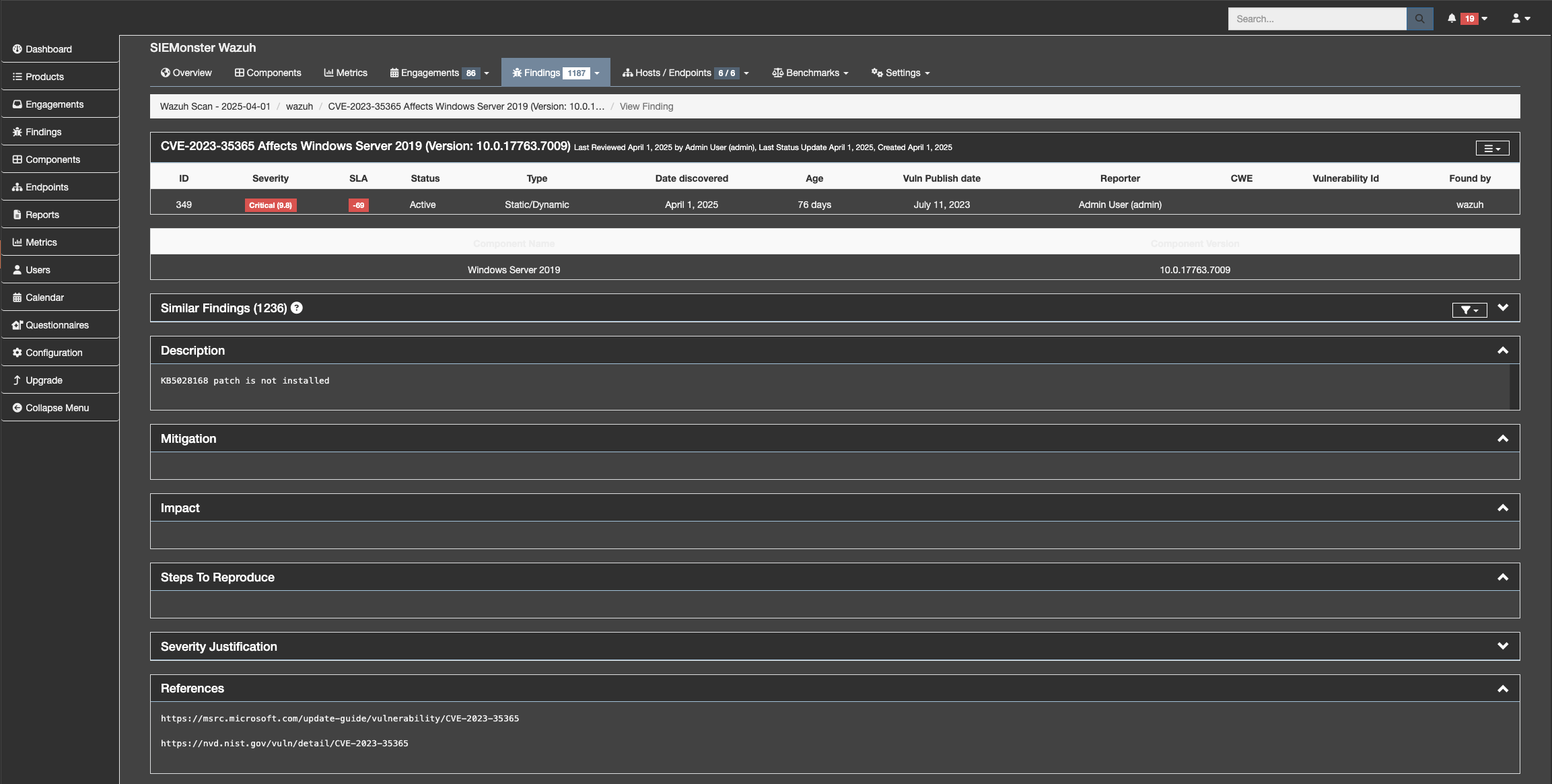
By default this should have at least a criticality rating with references, such as KB references, and reference URLs
In the top right you will find the options for the finding when clicking the three bar menu. Here you can accept the risk, edit the finding to add more details and or delete it. Feel free to review the options listed based on your internal vulnerability review process.