
Creating Custom RBAC roles
In addition to the default roles supplied by SIEMonster, custom roles can be created. The following details the process of adding a custom role.
🔖 To perform these steps you are required to have the accessmanager role. Please note that this role should only be assigned to a limited number of individuals for security reasons.
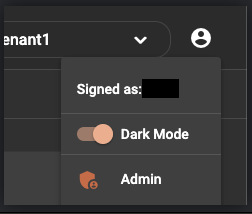
Once logged into SIEMonster, Click your user profile Icon in the top right corner and then Click “Admin”.
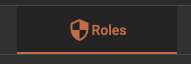
Click on “Roles” on the top bar.
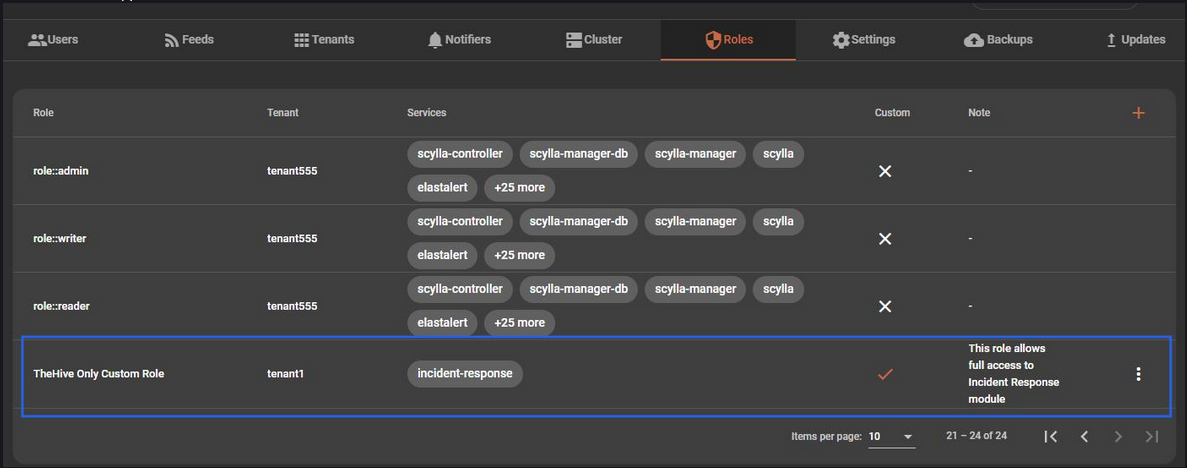
This screen lists all the current roles that exist in the system.
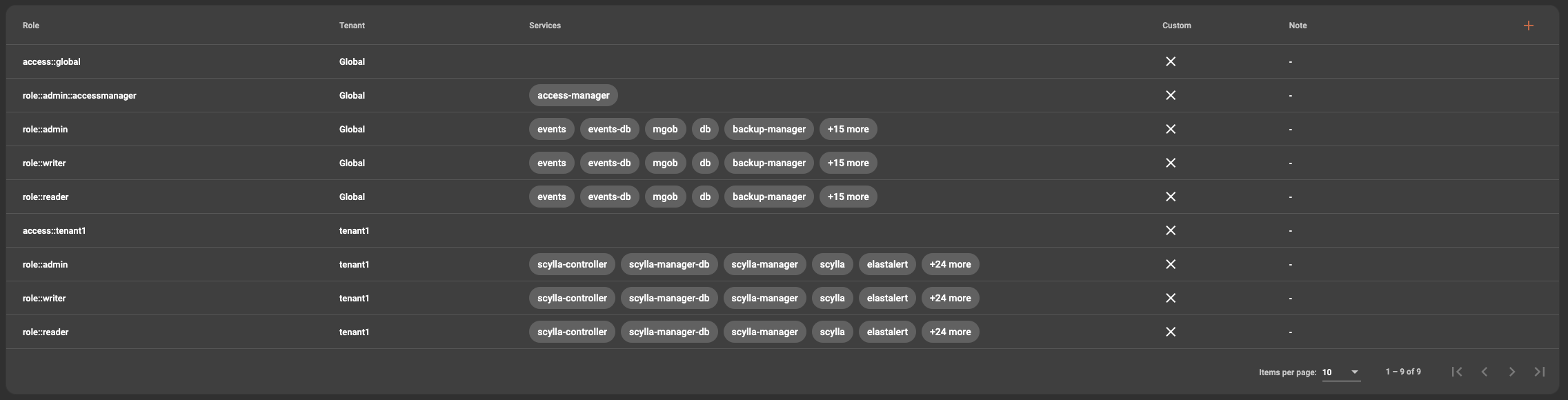
To add a custom role Click the “+” at the top right of the RBAC roles screen
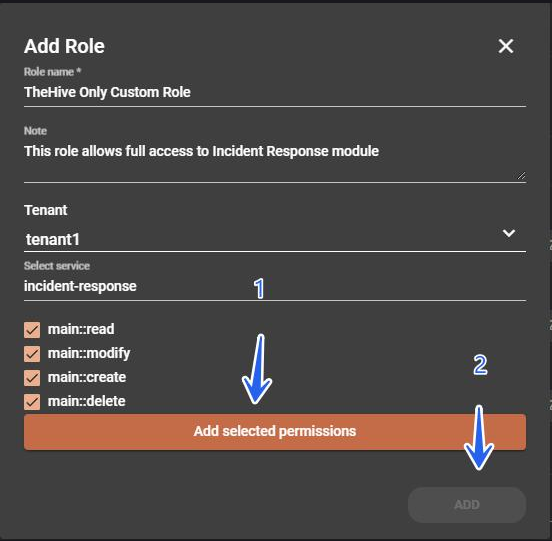
You will be prompted to add a role name, a note for the role such as purpose, a selection of the tenant to apply it to and a selection of the specific service in the dropdown.
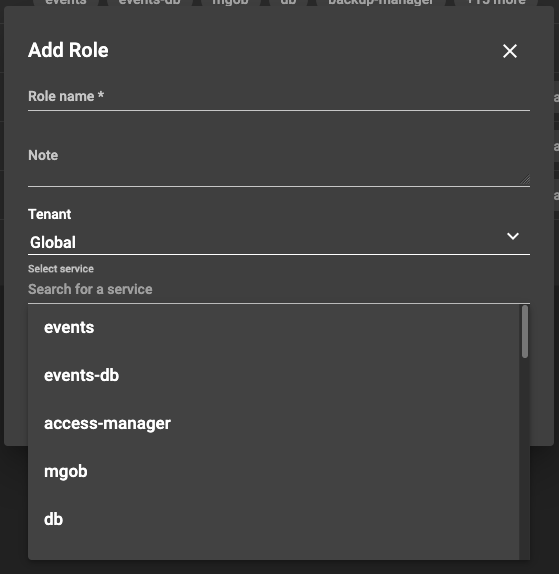
🔖 NOTE: In some limited cases the services dropdown will fail to be populated. This is caused by browser caching issues. Please switch tenants and then back to the wanted tenant as a workaround.
In the below screenshot a configuration is indicated on how to create a custom role to access Incident Response and then an example of how to assign rights so that the user this role is assigned to only gets access to the specific module. This is useful in cases where specific module access is required without allowing access to others.
🔖 NOTE: In this configuration the global modules such as those under Threat Management and Hunting Leads are still available. If the user should not access the global modules you can assign them direct access to the tenant only